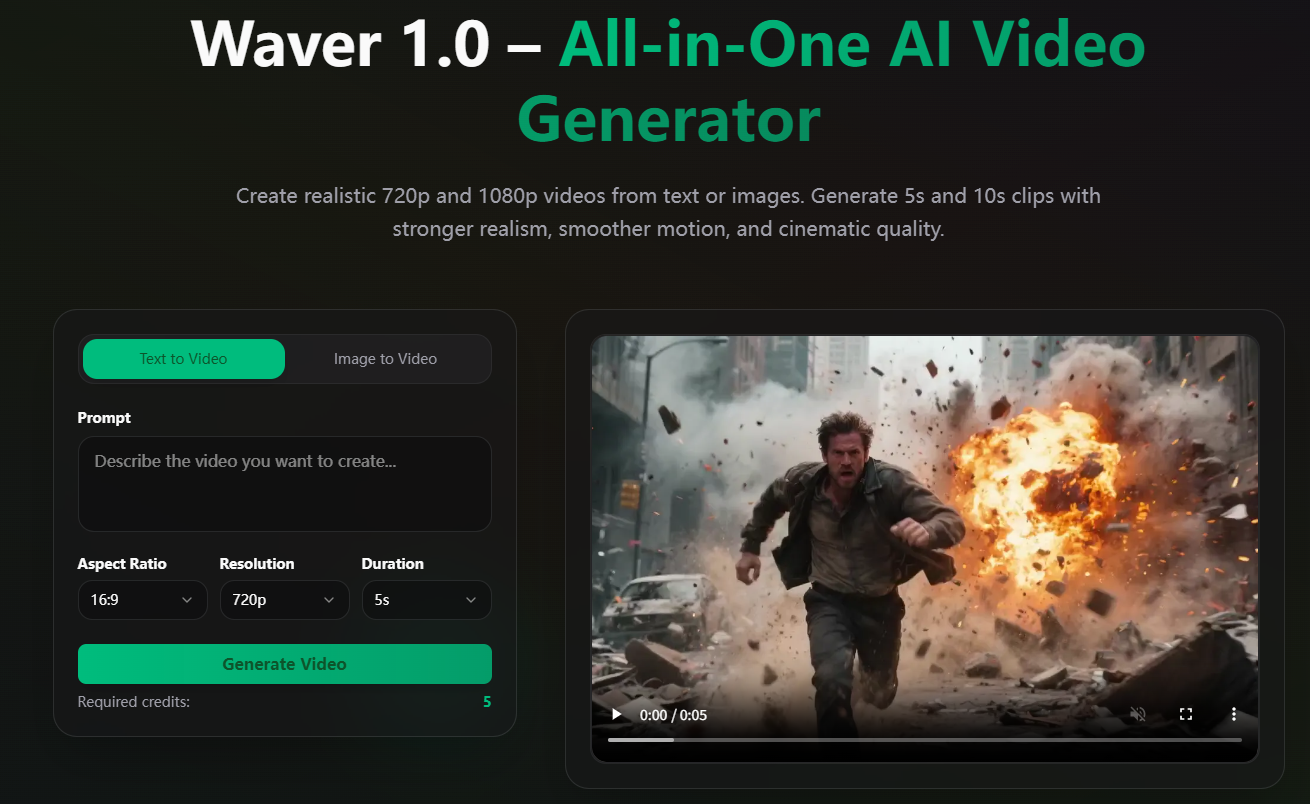
If you’ve been looking for a clear, practical, and beginner-friendly guide on How to Use Waver 1.0 AI Video Generator, this walkthrough will show you everything you need to know. Waver 1.0 is built for creators who want cinematic motion, multi-camera storytelling, and highly polished AI video output without struggling through complex filmmaking tools. In this guide, I’ll break down How to Use Waver 1.0 AI Video Generator step by step, using simple explanations and creator-focused tips. You can try everything mentioned here directly on our feature page at Waver 1.0.
Why Learn How to Use Waver 1.0 AI Video Generator?
Before diving into the workflow, it’s helpful to know what makes Waver 1.0 worth learning in the first place. Understanding How to Use Waver 1.0 AI Video Generator gives you access to a tool that can produce:
Multi-camera storytelling
Smooth cinematic motion
Long shots (5s and 10s)
Stable 24fps output
Realistic sports and action motion
Multiple styles: realism, anime, clay, plush, stylized
High-quality 720p or 1080p video
In short, it’s one of the easiest ways to turn your ideas into dynamic, visually appealing videos—whether you’re creating content for marketing, social media, education, or pure creativity.
Two Ways to Use Waver 1.0
Before learning How to Use Waver 1.0 AI Video Generator step by step, you should know there are two main modes:
1. Text-to-Video (T2V)
Describe your idea in words and Waver turns that description into a video.
Perfect for:
Story scenes
Dynamic sports shots
Environmental cinematic clips
Creative visual storytelling
2. Image-to-Video (I2V)
Upload a single image and turn it into a living, moving shot.
Perfect for:
Portrait motion
Product displays
Stylized character shots
Dynamic transformations
Both modes follow the same generation workflow, so let’s get into the full tutorial.
How to Use Waver 1.0 AI Video Generator: Step-by-Step Guide
Step 1: Choose Your Mode
Visit the feature page at Waver 1.0.
You’ll see two buttons:
Text-to-Video
Image-to-Video
Pick the one that matches your creative idea. This is the first step in understanding How to Use Waver 1.0 AI Video Generator.
Step 2: Write Your Prompt or Upload an Image
The core of How to Use Waver 1.0 AI Video Generator is learning how to describe your idea clearly.
A good prompt includes:
Who or what is the subject?
What are they doing?
What style should the video feel like?
What’s the camera movement?
What’s the environment?
What’s the lighting or mood?
Prompt Example:
“A young woman walking down a neon street, cinematic camera following her from behind, soft reflections on the ground, 1080p realism, smooth motion.”
If you’re using an uploaded image, make sure it matches the vibe you want in the final video.
Step 3: Click Generate
This is where Waver 1.0 does the magic. After you click generate, the system will:
Build the 5s or 10s shot
Create smooth 24fps motion
Simulate multi-camera movement
Keep characters consistent
Render realism, anime, or stylized looks based on your prompt
This step is the heart of How to Use Waver 1.0 AI Video Generator, and it’s surprisingly simple.
Step 4: Review, Download, and Share
Once the video is done, you can instantly download your clip. The output works great for:
Instagram Reels
TikTok short videos
YouTube content
Portfolio visuals
Ads and marketing
Storytelling clips
Product showcases
Completing this step means you’ve mastered the full workflow of How to Use Waver 1.0 AI Video Generator.
Tips for Better Results with Waver 1.0
If you want your videos to look more cinematic and intentional, these tips will help:
1. Be specific, not vague
Instead of saying:
“a woman walking”
Try:
“a woman walking through a neon-lit alley, handheld tracking camera.”
2. Mention the motion style
Camera direction shapes storytelling.
“tracking shot”
“dolly in”
“orbit around subject”
“static wide shot”
3. Choose a clear visual style
Examples:
realistic
anime
clay stop-motion
plush toy style
stylized cinematic
4. Add mood or lighting cues
Lighting dramatically changes the final look.
warm sunset glow
strong contrast
soft studio light
neon reflections
5. Break your story into simple chunks
Waver 1.0 is great for multi-scene storytelling—use short prompts that describe action in layers.
These small changes can significantly improve how Waver interprets your request.
What You Can Create With Waver 1.0
Once you understand How to Use Waver 1.0 AI Video Generator, you can use it across tons of creative fields:
● Content Creation
Make cinematic intros, outro sequences, narrative shots, or creative storytelling clips.
● Advertising & Branding
Generate product highlights or dynamic marketing visuals.
● E-commerce
Transform static product photos into animated showcase videos.
● Social Media
Turn simple ideas into eye-catching content for TikTok, Instagram, YouTube Shorts, Facebook, and X.
Waver 1.0 is flexible enough to support nearly any creative workflow.
Final Thoughts
Learning How to Use Waver 1.0 AI Video Generator opens the door to fast, flexible, and cinematic video creation. Whether you’re crafting storytelling scenes, generating stylized visual art, producing sports motion clips, or making product videos, Waver 1.0 gives you the control and polish you need to bring your ideas to life.
If you want to explore everything you learned in this guide, you can try Waver 1.0 directly here:
👉 https://www.waverai.app/Waver-1.0